z_mirror/RateCalculator
git clone https://git.raiguard.me/z_mirror/RateCalculator
3c60f09
trunk



Rate Calculator
Calculate maximum production and consumption rates for the selected machines.
Installation
Usage
Select some machines with the selection tool (found on the shortcut bar, or use
the hotkey Alt + X) to calculate the maximum production and consumption rates
for those machines. The rates will be displayed in the GUI:
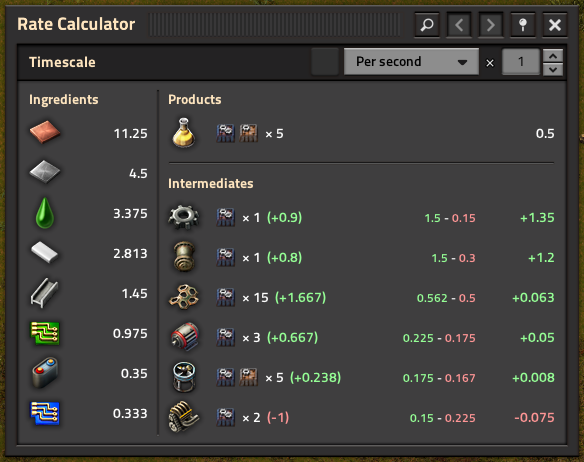
The GUI shows rates in several categories:
- Ingredients: Materials that the machines import.
- Products: Materials that the machines export.
- Intermediates: Materials that some machines produce and others consume. The displayed rate is the "net rate" of that intermediate material.
With a given set, your goal is to make all of the intermediate net rates positive (green) or neutral (white). The numbers in parenthesis next to the machine counts denote "net producers" i.e. how many fewer or more similarly-configured machines you need to build to produce the material at the required rate.
The above screenshot shows that this yellow science set needs at least 1 more assembler producing engine units to achieve the required input rates. It also shows that there is an extra assembler making low density structures that can safely be removed from the set.
Use the dropdown to change the timescale for the measurements. Select a container or cargo wagon with the entity selector to scale the measurements to that container or wagon's capacity (accounting for stack sizes). Select a transport belt or inserter to measure against that belt or inserter's maximum item transfer rate.
Use the manual multiplier input and/or buttons to scale the entire subfactory's rates and machine counts by that multiplier.
You can access the previous ten sets by using the navigation buttons in the titlebar.
Tips and tricks
- Selecting normally will produce a new selection. Alternatively, you can also hold shift to append the existing selection, or use shift + right click to remove machines from the selection.
- Press the shortcut / use the hotkey again when already holding the tool to show the GUI.
- Power input rates are not shown by default, but can be enabled in the mod settings.
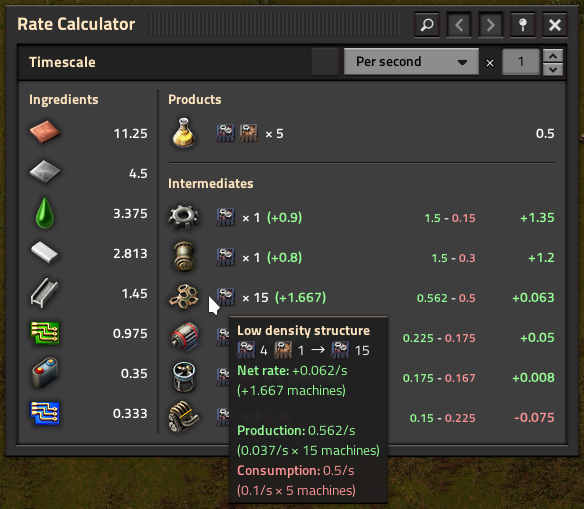
- Hovering over an entry will give more detailed information about that rate:
1[](https://ko-fi.com/raiguard) 2[](https://crowdin.com/project/raiguards-factorio-mods) 3[](https://mods.factorio.com/mod/RateCalculator) 4 5# Rate Calculator 6 7Calculate maximum production and consumption rates for the selected machines. 8 9## Installation 10 11[Download on the Mod Portal.](https://mods.factorio.com/mod/RateCalculator) 12 13## Usage 14 15Select some machines with the selection tool (found on the shortcut bar, or use 16the hotkey `Alt + X`) to calculate the maximum production and consumption rates 17for those machines. The rates will be displayed in the GUI: 18 19 20 21The GUI shows rates in several categories: 22 23- **Ingredients:** Materials that the machines import. 24- **Products:** Materials that the machines export. 25- **Intermediates:** Materials that some machines produce and others consume. 26The displayed rate is the "net rate" of that intermediate material. 27 28With a given set, your goal is to make all of the intermediate net rates 29positive (green) or neutral (white). The numbers in parenthesis next to the 30machine counts denote "net producers" i.e. how many fewer or more 31similarly-configured machines you need to build to produce the material at the 32required rate. 33 34The above screenshot shows that this yellow science set needs at least 1 35more assembler producing engine units to achieve the required input rates. It 36also shows that there is an extra assembler making low density structures that 37can safely be removed from the set. 38 39Use the dropdown to change the timescale for the measurements. Select a 40container or cargo wagon with the entity selector to scale the measurements to 41that container or wagon's capacity (accounting for stack sizes). Select a 42transport belt or inserter to measure against that belt or inserter's maximum 43item transfer rate. 44 45Use the manual multiplier input and/or buttons to scale the entire subfactory's 46rates and machine counts by that multiplier. 47 48You can access the previous ten sets by using the navigation buttons in the 49titlebar. 50 51## Tips and tricks 52 53- Selecting normally will produce a new selection. Alternatively, you can also 54hold **shift** to append the existing selection, or use **shift + right click** 55to remove machines from the selection. 56- Press the shortcut / use the hotkey again when already holding the tool to 57show the GUI. 58- Power input rates are not shown by default, but can be enabled in the mod 59settings. 60- Hovering over an entry will give more detailed information about that rate: 61 62